Manage my orders
Accessing your orders. Log in to your CrowdFarming account, click on your profile icon or name in the top right corner, then go to Orders. Your orders are sorted by purchase date, most recent first.…
Accessing your orders
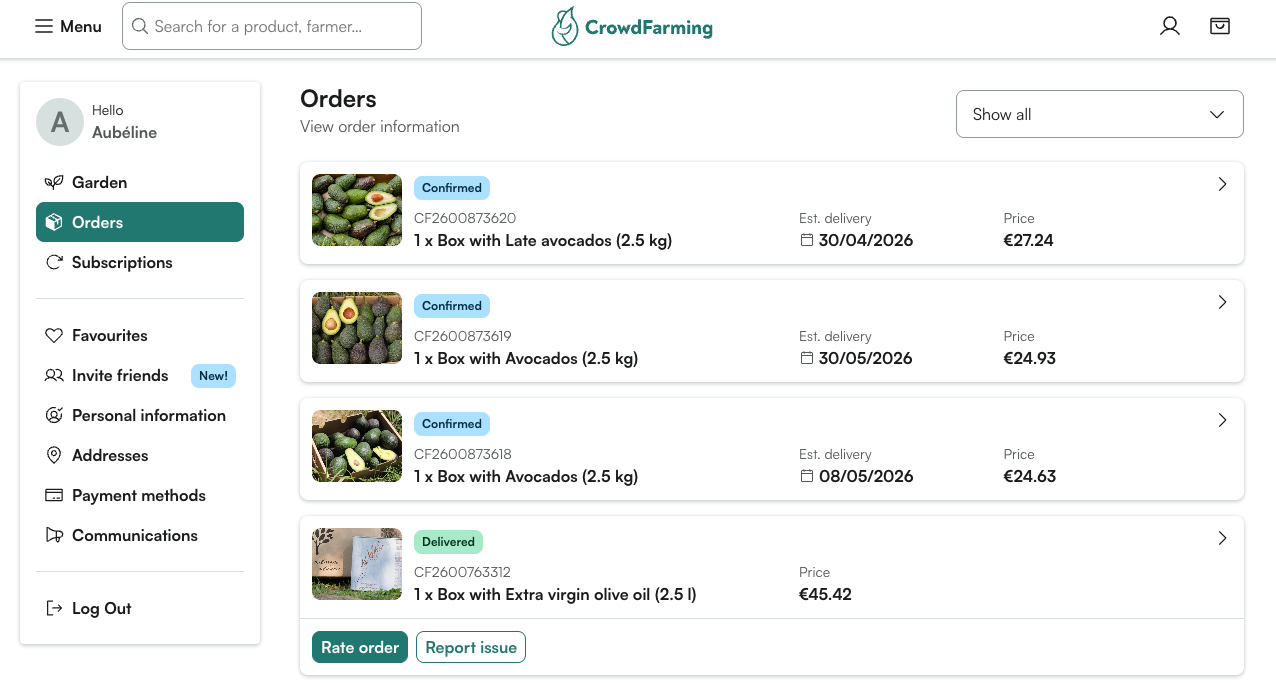
Log in to your CrowdFarming account, click on your profile icon or name in the top right corner, then go to Orders.
Your orders are sorted by purchase date, most recent first. You can filter them by status — Confirmed, In preparation, Sent, and more.
What you can modify
⚠️ Important: once an order is being prepared by the farmer, no changes are possible — including by our support team. Make sure to update your order before it reaches that stage.
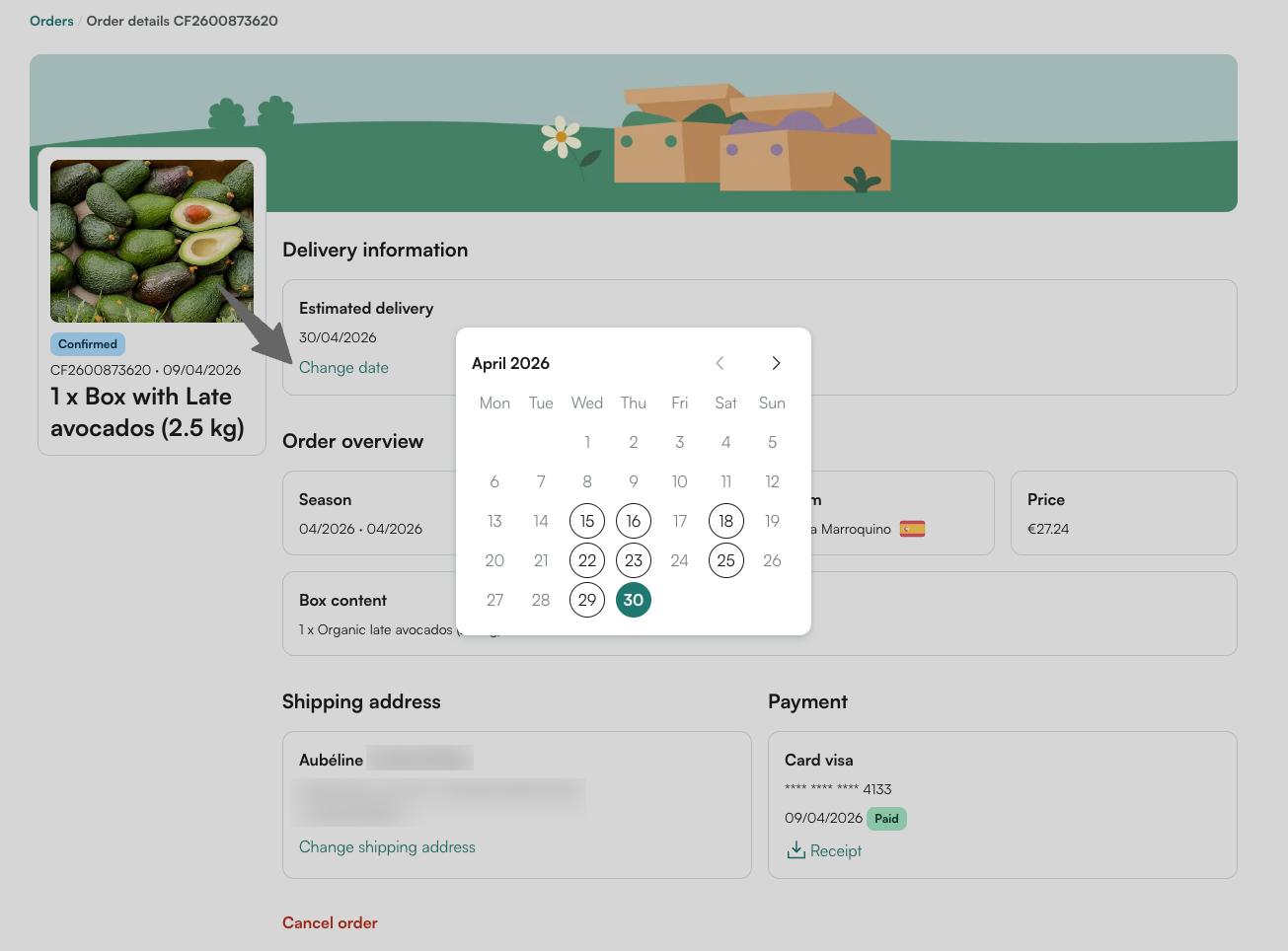
📅 Change the delivery date
- Open the order you wish to modify
- Click Change date
- Select an available date from the calendar — current date shown in green, available dates in white
- Confirm — your new date will appear in the order summary
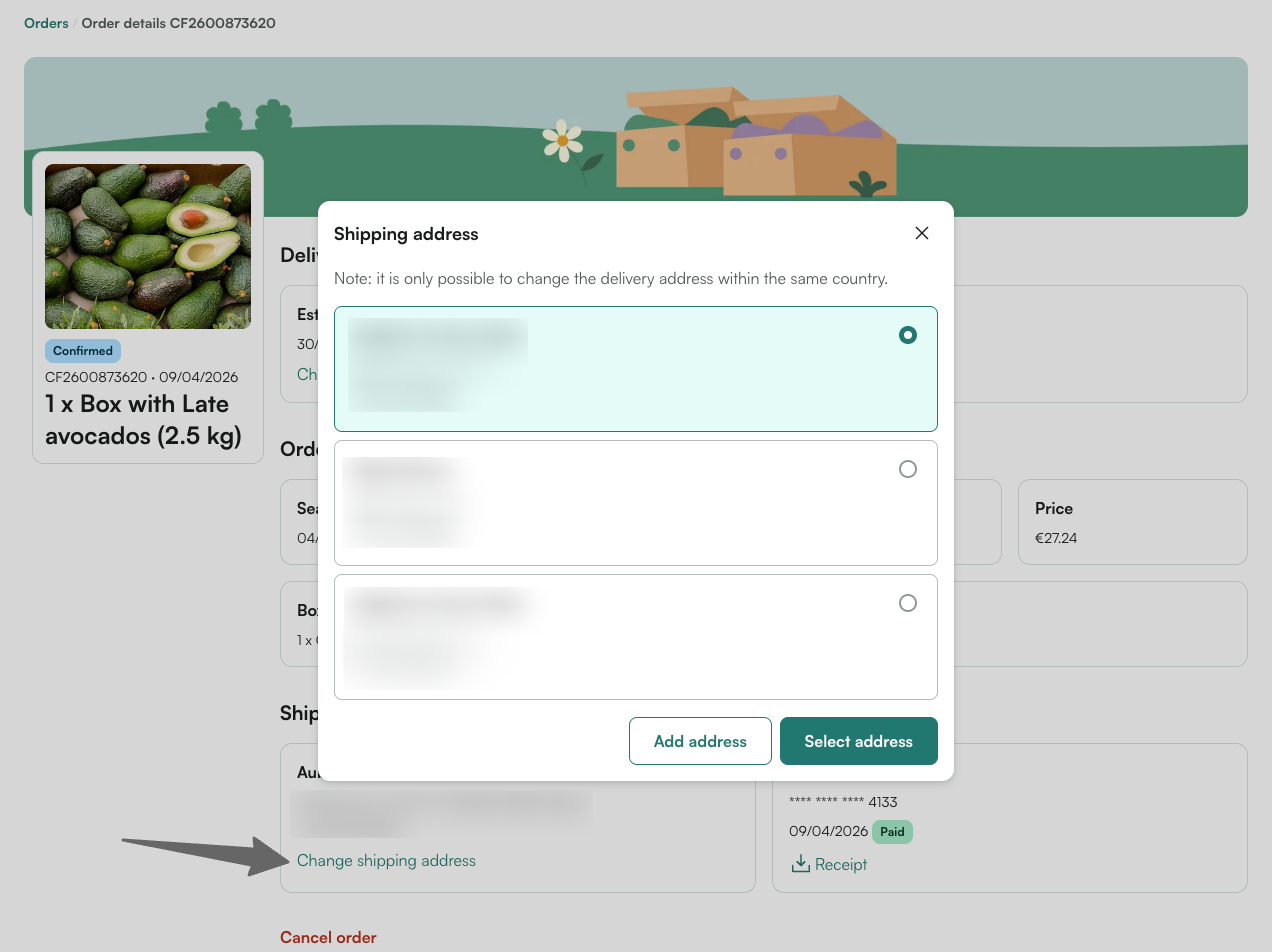
📍 Change the delivery address
- Open the order you wish to modify
- Click Change shipping address
- Select a saved address or add a new one
⚠️ You can only switch to an address in the same country. To deliver to a different country, cancel the order and place a new one.
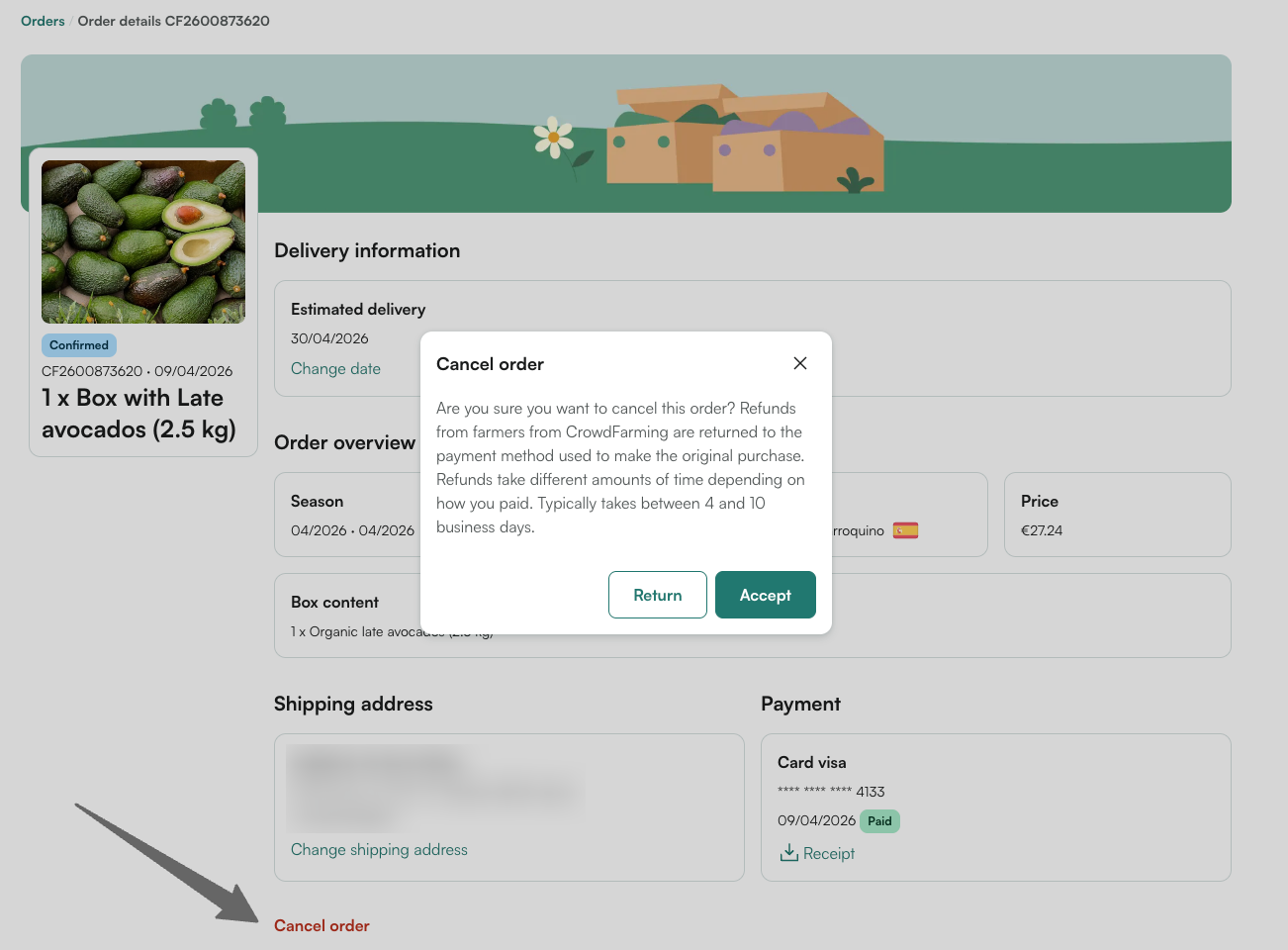
❌ Cancel the order
- Open the order you wish to cancel
- Scroll to the bottom of the page and click Cancel order
- Confirm your choice — the order status will update to Cancelled
Your refund will be initiated automatically to your original payment method and may take up to 10 days to appear on your statement.
Good to know
- If you cancel an order immediately after placing it, it may not appear on your bank statement at all — some banks don't record a payment and cancellation that happen in quick succession
- To cancel an adoption with multiple planned deliveries, cancel the deliveries first, then cancel the adoption itself
- Changes made on an order's detail page only affect that specific order — they do not apply to related orders, future subscription deliveries, or other adoption shipments. To make changes across all future orders, go to your account settings
❓ Need help? Contact our team →
How do I cancel an order?
Where is my order?